
• Home
  • Buying
  • Download
  • Support
  • Examples

Call us toll free (952) 223-1293

info@visibility.biz
Visibility.biz Visibility.biz Visibility.biz Visibility.biz
  • Home
  • Buying
  • Download
  • Support
  • Examples

Can I display text with Date Markers?

Can I display text with Date Markers?

Yes, you can customize Date Markers to display text by enclosing your text in single quotes (‘) in the “Custom” option.
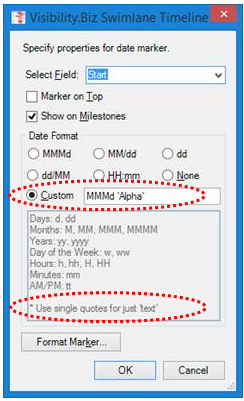
In addition, you can also display the same Date Marker field twice! 


For example, you can display Text for the Date Marker positioned above the task, and display it again with the Date portion below the task, by adding the Date Marker field twice (see example result below):

Date Marker 7

In this example, “Study 6” has multiple dates associated with it in the data source:
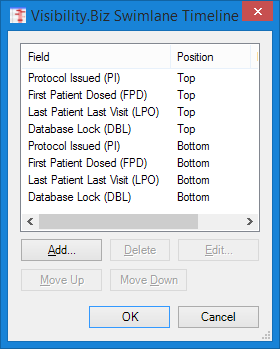
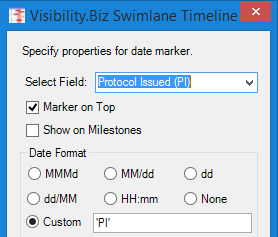
The Date Marker field named “Protocol Issued (PI)” is selected once with position of “Marker on Top” will, in this case, display ‘PI’ above the task:
The Date Marker field named “Protocol Issued (PI)” is selected again with the default position below (“Marker on Top” unchecked), in this case, the 3 letter month and day date format:
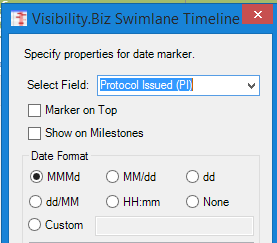
This is repeated for all of the date fields that the user wishes to display.

Share

Search

Recent Posts

  • How can I use a custom task text field (e.g., Text23) instead of the default “Name” field as my task label?
  • The Swimlane Timeline menus are no longer showing in Visio. How can I fix this?
  • How can I change the default width of the swimlane title area?
  • How do I start the Swimlane Timeline from within Visio?

Quick Connect


About us

Visibility.biz is an award-winning consulting group with leading experts on Microsoft® Office Visio® offering products and consulting services to help organizations best leverage their Visio investment.

Get in Touch

  • Visibility.biz
  • 4666 Slater Road, Eagan, MN 55122
  • (952) 223-1293
  • info@visibility.biz

© 2026 · Visibility.biz

  • Home
  • Buying
  • Download
  • Support
  • Examples