
• Home
  • Buying
  • Download
  • Support
  • Examples

Call us toll free (952) 223-1293

info@visibility.biz
Visibility.biz Visibility.biz Visibility.biz Visibility.biz
  • Home
  • Buying
  • Download
  • Support
  • Examples

How can I use a custom task text field (e.g., Text23) instead of the default “Name” field as my task label?

How can I use a custom task text field (e.g., Text23) instead of the default “Name” field as my task label?

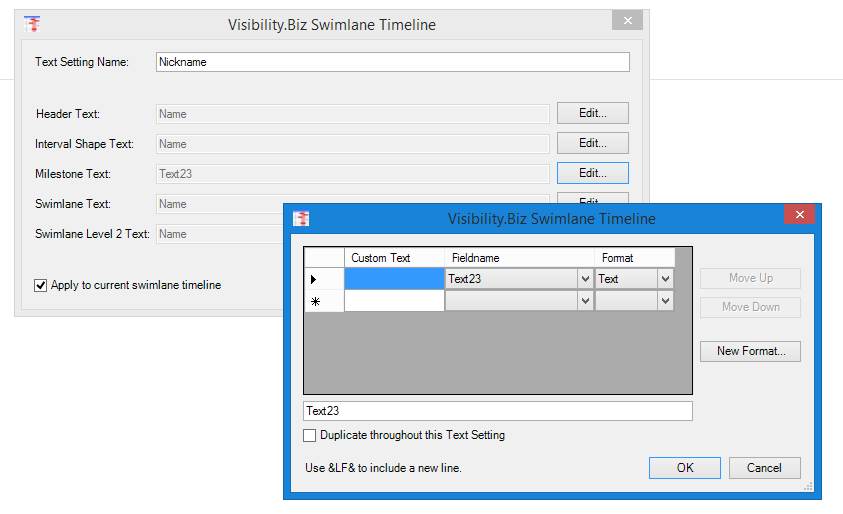
If you would like to use Text23 as your milestone task nickname to be displayed instead of the “Name” field, then go to the “ST Manage/Text” option to create a custom named text setting. Select “Define New”, then give the custom setting a name (for example, Nickname), and then “Edit” the type of shapes you would like to change.

In your example, you might change the “Milestone Text” to be ‘Text23” instead of “Name” field as shown below:

Share

Search

Recent Posts

  • How can I use a custom task text field (e.g., Text23) instead of the default “Name” field as my task label?
  • The Swimlane Timeline menus are no longer showing in Visio. How can I fix this?
  • How can I change the default width of the swimlane title area?
  • How do I start the Swimlane Timeline from within Visio?

Quick Connect


About us

Visibility.biz is an award-winning consulting group with leading experts on Microsoft® Office Visio® offering products and consulting services to help organizations best leverage their Visio investment.

Get in Touch

  • Visibility.biz
  • 4666 Slater Road, Eagan, MN 55122
  • (952) 223-1293
  • info@visibility.biz

© 2026 · Visibility.biz

  • Home
  • Buying
  • Download
  • Support
  • Examples